

Connect your Linear account
1
Open Connectors
In the Fluid admin, open Cowork and click Connectors (or Connect Linear) in the board’s toolbar.
2
Click Connect
In the Linear row, click Connect. Linear opens and asks you to approve Fluid’s access.
3
Approve in Linear
Approve the request. You return to Connectors, and the Linear row shows your workspace and name with a Connected badge.
Add a Cowork label in Linear
Fluid looks for a label named Cowork. It can be a workspace label or a team label. The name is matched without regard to capital letters or surrounding spaces, socowork works too.
If your Linear workspace doesn’t have one yet, create a label named Cowork in Linear’s label settings.
Send an issue to Cowork
Add the Cowork label to an existing issue, or create a new issue with the label. A Cowork ticket appears on your company’s board, created by you. It carries:- the issue’s title;
- the issue’s description;
- a link back to the issue in Linear.
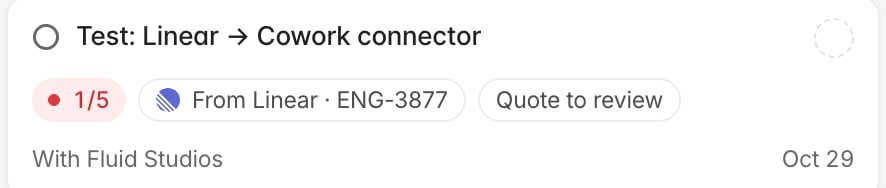
A ticket sent from Linear.
Reconnect or disconnect
- Needs reconnecting: if Linear stops accepting Fluid’s access, the Linear row shows Needs reconnecting. Click Reconnect and approve again. Issues you label while disconnected aren’t sent.
- Disconnect: click Disconnect in the Linear row. Labels you add afterwards create nothing. Tickets already created stay in Cowork.